1
Classroom Guardian
Create the school release
In the school dashboard, open Extension deployment. Optionally enable the custom blocked page, then select Create release.
Copy Extension IDCopy Update URLKeep this tab open
 Classroom GuardianDeployment Center
Google Admin installation guide
Create the school release, add it by ID and custom update URL, force-install it for the correct organizational unit, and verify one managed device.
Organization names, account markers, extension IDs, and school-specific identifiers have been removed. Always copy the values from your own school’s Release panel.
Classroom Guardian
In the school dashboard, open Extension deployment. Optionally enable the custom blocked page, then select Create release.
Google Admin
Sign in to the Google Admin console with an administrator account. Go to Devices → Chrome → Apps & extensions → Users & browsers. If your organization uses Chrome Enterprise Core, the starting menu may be Chrome browser.
Select the organizational unit that contains the students who should receive Classroom Guardian. Start with a limited school-approved group when validating a new deployment.
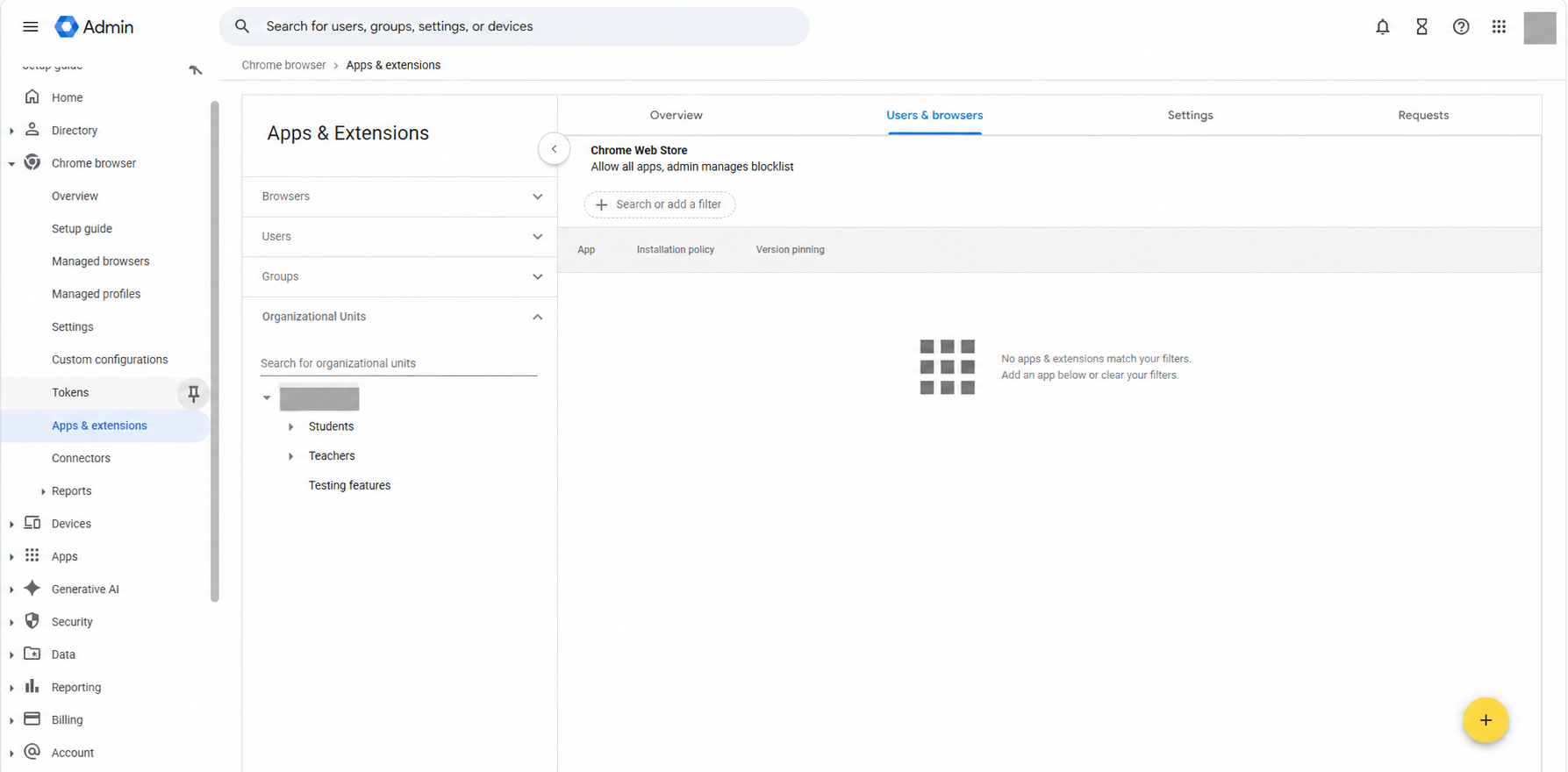
Add the extension
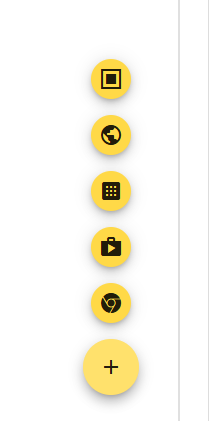
Select the yellow + button in the lower-right corner, then choose Add Chrome app or extension by ID.
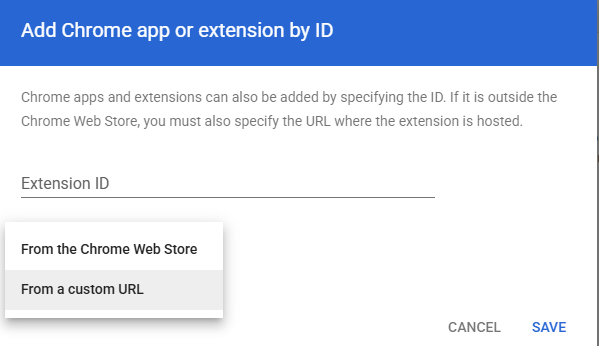
Release values
Choose From a custom URL. Paste the 32-character Extension ID and the HTTPS Update URL from your school’s Classroom Guardian Release panel. Then select Save.
Installation policy
Open the newly added extension. Under Installation policy, choose Force install. This installs Classroom Guardian for users in the selected organizational unit and prevents them from removing it.
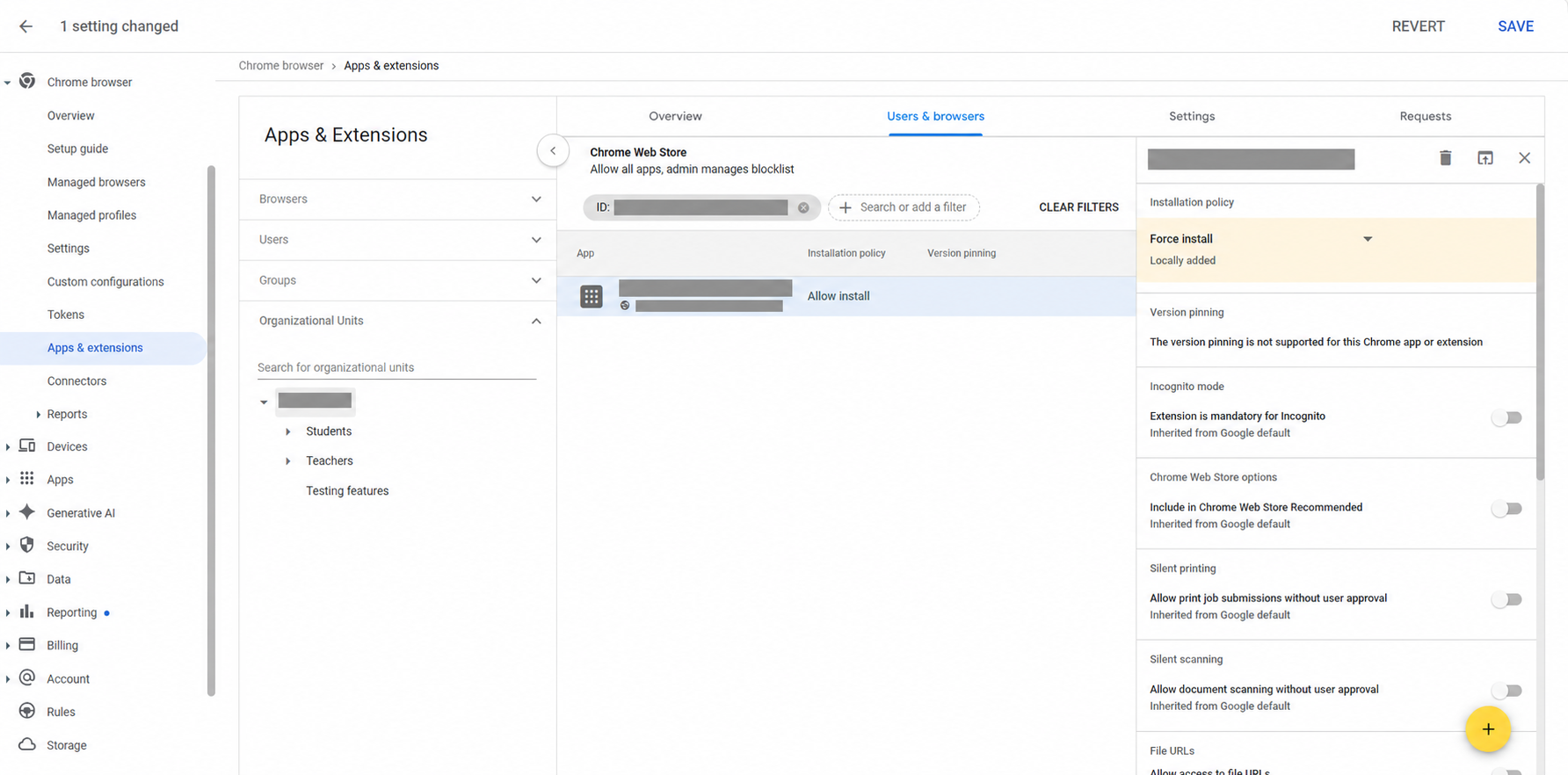
Required setting
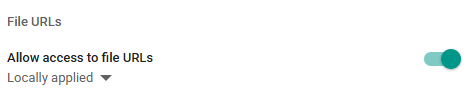
In the extension settings, scroll to File URLs and turn on Allow access to file URLs. This is required for supported local-file navigation and the managed blocked-page workflow.
Recommended security setting
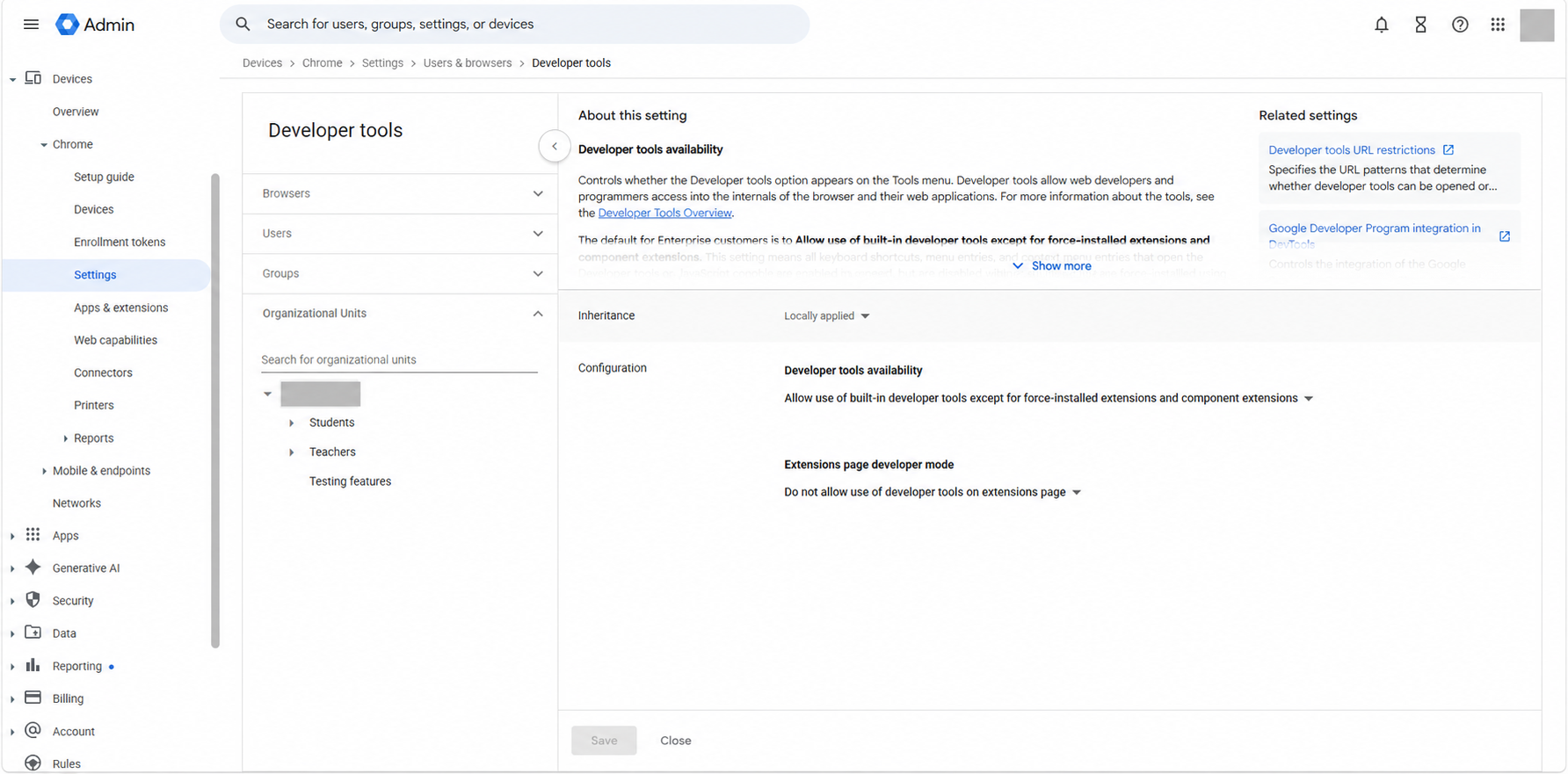
Go to Devices → Chrome → Settings → Users & browsers, select the same student organizational unit, and search for Developer tools.
Set Developer tools availability to Allow use of built-in developer tools except for force-installed extensions and component extensions. Set Extensions page developer mode to Do not allow use of developer tools on extensions page, then save.
To block Chrome’s offline dinosaur game, search for Allow Dinosaur Easter Egg, set it to Do not allow users to play the dinosaur easter egg game, and save. Classroom Guardian blocks supported Google Search and Google Doodle games when the school Games category is blocked; the managed Chrome policy covers the protected chrome:// offline page that extensions cannot access.
Validation
Select Save in Google Admin. On one managed test device, open chrome://policy, choose Reload policies, and confirm that the extension appears in chrome://extensions as managed by the organization.
chrome://management says the browser or profile is managed. Then reload policies and restart Chrome. A personal Gmail profile or an unmanaged browser will not receive the force-install rule.ExtensionInstallForcelist should also be present as a machine/platform policy. A user-only cloud policy can appear valid while Chrome still declines the off-store package.The message Version pinning is not supported for this Chrome app or extension is expected for this self-hosted release. It does not prevent Force install or Force install + pin from installing the extension.
Google documentation
Google’s interface and labels can change. These official pages explain force installation, organizational-unit scope, and self-hosted extension update locations.